Touchscreens are available on more and more devices, from phones up to desktop screens. Your app should respond to their touch in intuitive and beautiful ways.
Matt Gaunt [X](https://twitter.com/gauntface) [Homepage](https://gauntface.com/blog)
` element on Firefox, you get a gradient
applied, which you can remove by setting `background-image: none`.
```css
/* Firefox Specific CSS to remove button
differences and focus ring */
.btn {
background-image: none;
}
.btn::-moz-focus-inner {
border: 0;
}
```
[Try it](https://googlesamples.github.io/web-fundamentals/fundamentals/design-and-ux/input/touch/states-example.html)
> [!CAUTION]
> **Caution:** Only suppress the default styles mentioned above if you have pseudo classes for `:hover`, `:active` and `:focus`!
### Disabling user-select
When you're creating your UI there may be scenarios where you want users
to interact with your elements but you want to suppress the default behavior
of selecting text on long press or dragging a mouse over your UI.
You can do this with the `user-select` CSS property, but beware that
doing this on content can be **extremely** infuriating
for users if they *want* to select the text in the element.
So make sure you use it with caution and sparingly.
```css
/* Example: Disable selecting text on a paragraph element: */
p.disable-text-selection {
user-select: none;
}
```
## Implement custom gestures
If you have an idea for custom interactions and gestures for your site, there
are two topics to keep in mind:
1. How to support all browsers.
2. How to keep your frame rate high.
In this article, we'll look at exactly these topics covering the API's we need
to support to hit all browsers and then cover how we use these events
efficiently.
Depending on what you would like your gesture to do, you likely want the
user to interact with one element at a time *or* you'll want them to be able
to interact with multiple elements at the same time.
> [!CAUTION]
> **Caution:** Don't forget that some users will want keyboard input and users running assistive technology on a touchscreen device may not be able to perform gestures because they're intercepted / consumed by the assistive technology.
We are going to look at two examples in this article, both demonstrating
support for all browsers and how to keep the frame rate high.
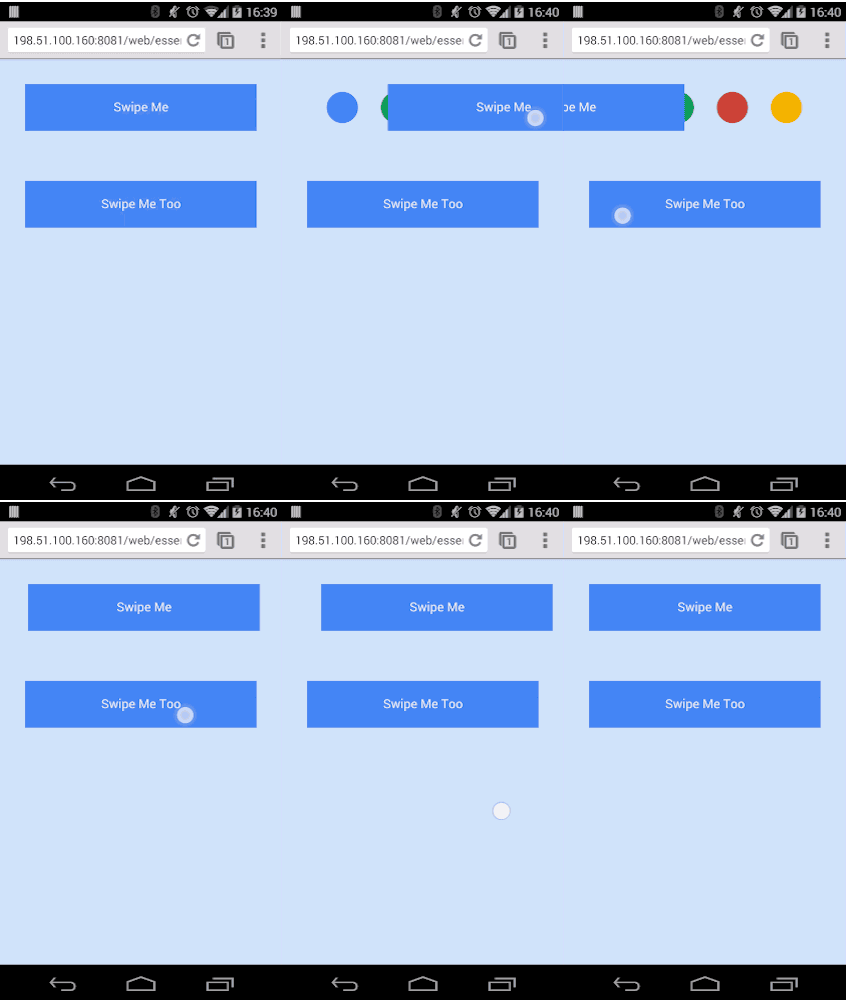
The first example will allow the user to interact with one element. In this
case you might want all touch events to be given to that one element, as long
as the gesture initially started on the element itself. For example, moving a
finger off the swipe-able element can still control the element.
This is useful as it provides a great deal of flexibility for the user, but
enforces a restriction on how the user can interact with your UI.
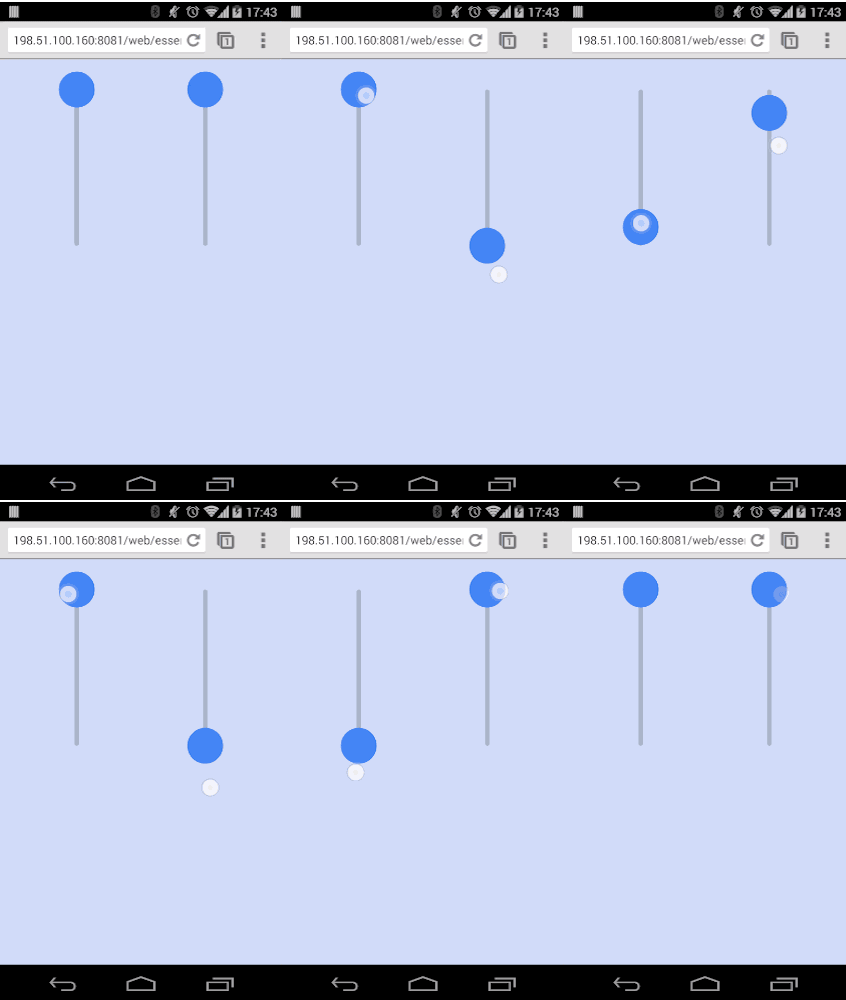
If, however, you expect users to interact with multiple elements at the same
time (using multi-touch), you should restrict the touch to the specific
element.
This is more flexible for users, but complicates the logic for manipulating
the UI and is less resilient to user error.
### Add event listeners
In Chrome (version 55 and later), Internet Explorer \& Edge,
`PointerEvents` are the recommended approach for implementing custom gestures.
In other browsers `TouchEvents` and `MouseEvents` are the correct approach.
The great feature of `PointerEvents` is that it merges multiple types of input,
including mouse, touch and pen events, into one set of
callbacks. The events to listen for are `pointerdown`, `pointermove`,
`pointerup` and `pointercancel`.
The equivalents in other browsers are `touchstart`, `touchmove`,
`touchend` and `touchcancel` for touch events and if you wanted to implement
the same gesture for mouse input you'd need to implement `mousedown`,
`mousemove`, and `mouseup`.
If you have questions about which events to use, check out this table of
[Touch, mouse and pointer events](https://web.dev/articles/add-touch-to-your-site.md.txt#touch_mouse_and_pointer_events).
Using these events requires calling the `addEventListener()` method on a DOM
element, along with the name of an event, a callback function and a boolean.
The boolean determines whether you should catch the event before or after
other elements have had the opportunity to catch and interpret the
events. (`true` means you want the event before other elements.)
Here's an example of listening for the start of an interaction.
```javascript
// Check if pointer events are supported.
if (window.PointerEvent) {
// Add Pointer Event Listener
swipeFrontElement.addEventListener('pointerdown', this.handleGestureStart, true);
swipeFrontElement.addEventListener('pointermove', this.handleGestureMove, true);
swipeFrontElement.addEventListener('pointerup', this.handleGestureEnd, true);
swipeFrontElement.addEventListener('pointercancel', this.handleGestureEnd, true);
} else {
// Add Touch Listener
swipeFrontElement.addEventListener('touchstart', this.handleGestureStart, true);
swipeFrontElement.addEventListener('touchmove', this.handleGestureMove, true);
swipeFrontElement.addEventListener('touchend', this.handleGestureEnd, true);
swipeFrontElement.addEventListener('touchcancel', this.handleGestureEnd, true);
// Add Mouse Listener
swipeFrontElement.addEventListener('mousedown', this.handleGestureStart, true);
}
```
[Try it](https://googlesamples.github.io/web-fundamentals/fundamentals/design-and-ux/input/touch/touch-demo-1.html)
> [!NOTE]
> **Note:** Because of the design of the API, PointerEvents only need a single `pointerdown` event to handle both mouse and touch events.
#### Handle single-element interaction
In the short snippet of code above we only added the starting event listener
for mouse events. The reason for this is that mouse events will only trigger
when the cursor is hovering *over* the element the event listener is added to.
`TouchEvents` will track a gesture after it's started regardless of where the
touch occurs and `PointerEvents` will track events regardless of where the touch
occurs after we call `setPointerCapture` on a DOM element.
For mouse move and end events we add the event listeners *in* the
gesture start method and add the listeners to the document, meaning it can
track the cursor until the gesture is complete.
The steps taken to implement this are:
1. Add all TouchEvent and PointerEvent listeners. For MouseEvents add **only** the start event.
2. Inside the start gesture callback, bind the mouse move and end events to the document. This way all mouse events are received regardless of whether the event occurs on the original element or not. For PointerEvents we need to call `setPointerCapture()` on our original element to receive all further events. Then handle the start of the gesture.
3. Handle the move events.
4. On the end event, remove the mouse move and end listeners from the document and end the gesture.
Below is a snippet of our `handleGestureStart()` method which adds the move
and end events to the document:
```javascript
// Handle the start of gestures
this.handleGestureStart = function(evt) {
evt.preventDefault();
if(evt.touches && evt.touches.length > 1) {
return;
}
// Add the move and end listeners
if (window.PointerEvent) {
evt.target.setPointerCapture(evt.pointerId);
} else {
// Add Mouse Listeners
document.addEventListener('mousemove', this.handleGestureMove, true);
document.addEventListener('mouseup', this.handleGestureEnd, true);
}
initialTouchPos = getGesturePointFromEvent(evt);
swipeFrontElement.style.transition = 'initial';
}.bind(this);
```
[Try it](https://googlesamples.github.io/web-fundamentals/fundamentals/design-and-ux/input/touch/touch-demo-1.html)
The end callback we add is `handleGestureEnd()`, which removes the move
and end event listeners from the document and releases the pointer capture
when the gesture has finished like so:
```javascript
// Handle end gestures
this.handleGestureEnd = function(evt) {
evt.preventDefault();
if (evt.touches && evt.touches.length > 0) {
return;
}
rafPending = false;
// Remove Event Listeners
if (window.PointerEvent) {
evt.target.releasePointerCapture(evt.pointerId);
} else {
// Remove Mouse Listeners
document.removeEventListener('mousemove', this.handleGestureMove, true);
document.removeEventListener('mouseup', this.handleGestureEnd, true);
}
updateSwipeRestPosition();
initialTouchPos = null;
}.bind(this);
```
[Try it](https://googlesamples.github.io/web-fundamentals/fundamentals/design-and-ux/input/touch/touch-demo-1.html)
By following this pattern of adding the move event to the document, if the
user starts interacting with an element and moves their gesture outside of
the element, we'll continue to get mouse movements regardless of where they
are on the page, because the events are being received from the document.
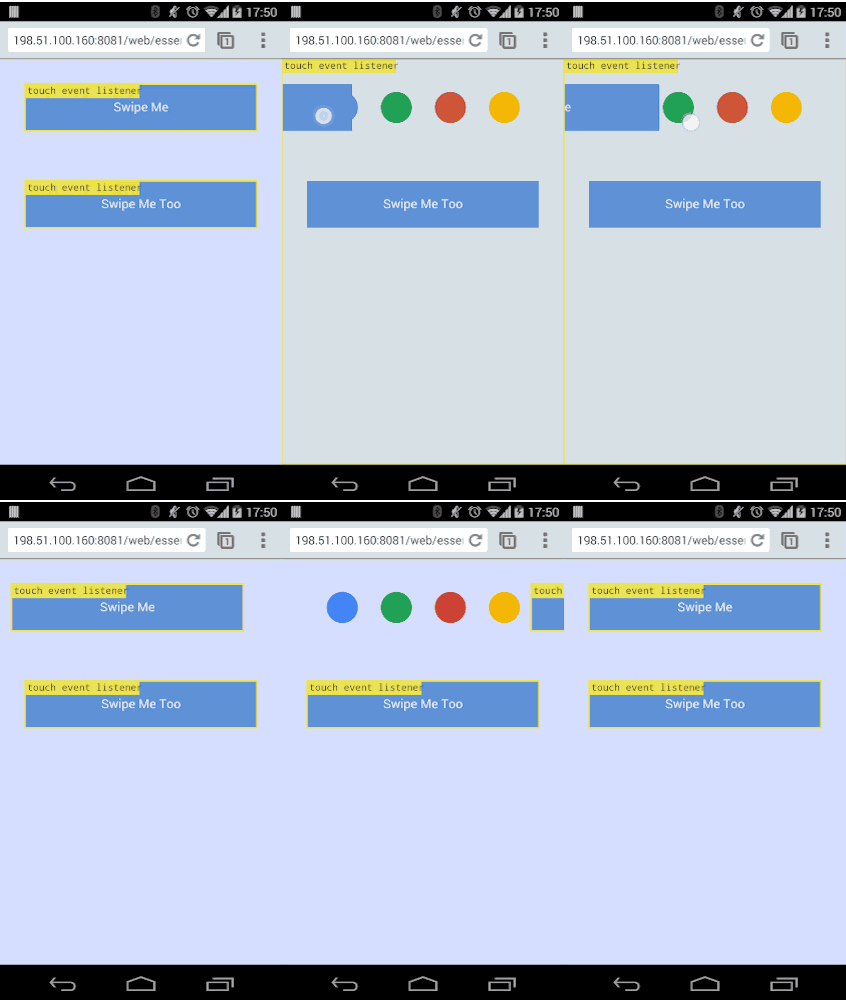
This diagram shows what the touch events are doing as we add the
move and end events to the document once a gesture begins.
### Responding to touch efficiently
Now that we have the start and end events taken care of we can actually
respond to the touch events.
For any of the start and move events, you can easily extract `x` and `y`
from an event.
The following example checks whether the event is from a `TouchEvent` by
checking if `targetTouches` exists. If it does, then it extracts the
`clientX` and `clientY` from the first touch.
If the event is a `PointerEvent` or `MouseEvent` it extracts `clientX` and
`clientY` directly from the event itself.
```javascript
function getGesturePointFromEvent(evt) {
var point = {};
if (evt.targetTouches) {
// Prefer Touch Events
point.x = evt.targetTouches[0].clientX;
point.y = evt.targetTouches[0].clientY;
} else {
// Either Mouse event or Pointer Event
point.x = evt.clientX;
point.y = evt.clientY;
}
return point;
}
```
[Try it](https://googlesamples.github.io/web-fundamentals/fundamentals/design-and-ux/input/touch/touch-demo-2.html)
A `TouchEvent` has three lists containing touch data:
- `touches`: list of all current touches on the screen, regardless of DOM element they are on.
- `targetTouches`: list of touches currently on the DOM element the event is bound to.
- `changedTouches`: list of touches which changed resulting in the event being fired.
In most cases, `targetTouches` gives you everything you need and want. (For
more info on these lists see [Touch lists](https://web.dev/articles/add-touch-to-your-site.md.txt#touch_lists)).
#### Use requestAnimationFrame
Since the event callbacks are fired on the main thread, we want to run as
little code as possible in the callbacks for our events, keeping our frame
rate high and preventing jank.
Using `requestAnimationFrame()` we have an opportunity to update the UI just
before the browser is intending to draw a frame and will help us move some
work out of our event callbacks.
If you are unfamiliar with `requestAnimationFrame()`, you
can [learn more here](https://web.dev/articles/optimize-javascript-execution.md.txt#use_requestanimationframe_for_visual_changes).
A typical implementation is to save the `x` and `y` coordinates from the
start and move events and request an animation frame inside the move event
callback.
In our demo, we store the initial touch position in `handleGestureStart()` (look for `initialTouchPos`):
```javascript
// Handle the start of gestures
this.handleGestureStart = function(evt) {
evt.preventDefault();
if (evt.touches && evt.touches.length > 1) {
return;
}
// Add the move and end listeners
if (window.PointerEvent) {
evt.target.setPointerCapture(evt.pointerId);
} else {
// Add Mouse Listeners
document.addEventListener('mousemove', this.handleGestureMove, true);
document.addEventListener('mouseup', this.handleGestureEnd, true);
}
initialTouchPos = getGesturePointFromEvent(evt);
swipeFrontElement.style.transition = 'initial';
}.bind(this);
```
The `handleGestureMove()` method stores the position of its event
before requesting an animation frame if we need to, passing in our
`onAnimFrame()` function as the callback:
```javascript
this.handleGestureMove = function (evt) {
evt.preventDefault();
if (!initialTouchPos) {
return;
}
lastTouchPos = getGesturePointFromEvent(evt);
if (rafPending) {
return;
}
rafPending = true;
window.requestAnimFrame(onAnimFrame);
}.bind(this);
```
The `onAnimFrame` value is a function that when called, changes our UI
to move it around. By passing this function into `requestAnimationFrame()`, we
tell the browser to call it just before it's about to update the page
(i.e. paint any changes to the page).
In the `handleGestureMove()` callback we initially check if `rafPending` is false,
which indicates if `onAnimFrame()` has been called by `requestAnimationFrame()`
since the last move event. This means we only have one `requestAnimationFrame()`
waiting to run at any one time.
When our `onAnimFrame()` callback is executed, we set the transform on any
elements we want to move before updating `rafPending` to `false`, allowing the
the next touch event to request a new animation frame.
```javascript
function onAnimFrame() {
if (!rafPending) {
return;
}
var differenceInX = initialTouchPos.x - lastTouchPos.x;
var newXTransform = (currentXPosition - differenceInX)+'px';
var transformStyle = 'translateX('+newXTransform+')';
swipeFrontElement.style.webkitTransform = transformStyle;
swipeFrontElement.style.MozTransform = transformStyle;
swipeFrontElement.style.msTransform = transformStyle;
swipeFrontElement.style.transform = transformStyle;
rafPending = false;
}
```
### Control gestures using touch actions
The CSS property `touch-action` allows you to control the default touch
behavior of an element. In our examples, we use `touch-action: none` to
prevent the browser from doing anything with a users' touch, allowing us
to intercept all of the touch events.
```css
/* Pass all touches to javascript: */
button.custom-touch-logic {
touch-action: none;
}
```
Using `touch-action: none` is somewhat a nuclear option as it prevents all
the default browser behaviors. In many cases one of the options
below is a better solution.
`touch-action` allows you to disable gestures implemented by a browser.
For example, IE10+ supports a double-tap to zoom gesture. By setting a
`touch-action` of `manipulation` you prevent the default double-tap
behavior.
This allows you to implement a double-tap gesture yourself.
Below is a list of commonly used `touch-action` values:
| Touch Action Parameters ||
|---|---|
| `touch-action: none` | No touch interactions will be handled by the browser. |
| `touch-action: pinch-zoom` | Disables all browser interactions like \`touch-action: none\` apart from \`pinch-zoom\`, which is still handled by the browser. |
| `touch-action: pan-y pinch-zoom` | Handle horizontal scrolls in JavaScript without disabling vertical scrolling or pinch-zooming (eg. image carousels). |
| `touch-action: manipulation` | Disables double-tap gesture which avoids any click delay by the browser. Leaves scrolling and pinch-zoom up to the browser. |
## Supporting older versions of IE
If you want to support IE10, you'll need to handle vendor prefixed versions of
`PointerEvents`.
To check for support of `PointerEvents` you'd typically look for
`window.PointerEvent`, but in IE10, you'd look for
`window.navigator.msPointerEnabled`.
The event names with vendor prefixes are: `'MSPointerDown'`, `'MSPointerUp'` and
`'MSPointerMove'`.
The example below shows you how to check for support and switch
the event names.
```javascript
var pointerDownName = 'pointerdown';
var pointerUpName = 'pointerup';
var pointerMoveName = 'pointermove';
if (window.navigator.msPointerEnabled) {
pointerDownName = 'MSPointerDown';
pointerUpName = 'MSPointerUp';
pointerMoveName = 'MSPointerMove';
}
// Simple way to check if some form of pointerevents is enabled or not
window.PointerEventsSupport = false;
if (window.PointerEvent || window.navigator.msPointerEnabled) {
window.PointerEventsSupport = true;
}
```
For more information, checkout this [updates article from
Microsoft](https://msdn.microsoft.com/library/dn304886(v=vs.85).aspx).
## Reference
### Pseudo classes for touch states
| Class | Example | Description |
|---|---|---|
| :hover |  | Entered when a cursor is placed over an element. Changes in the UI on hover are helpful to encourage users to interact with elements. |
| :focus |  | Entered when the user tabs through elements on a page. The focus state allows the user to know what element they are currently interacting with; also allows users to navigate your UI easily using a keyboard. |
| :active |  | Entered when an element is being selected, for example, when a user is clicking or touching an element. |
The definitive touch events reference can be found here:
[W3C Touch Events](http://www.w3.org/TR/touch-events/).
### Touch, mouse, and pointer events
These events are the building blocks for adding new gestures into your
application:
| Touch, Mouse, Pointer Events ||
|---|---|
| `touchstart`, `mousedown`, `pointerdown` | This is called when a finger first touches an element or when the user clicks down on the mouse. |
| `touchmove`, `mousemove`, `pointermove` | This is called when the user moves their finger across the screen or drags with the mouse. |
| `touchend`, `mouseup`, `pointerup` | This is called when the user lifts their finger off of the screen or releases the mouse. |
| `touchcancel` `pointercancel` | This is called when the browser cancels the touch gestures. For example, a user touch a web app and then change tabs. |
### Touch lists
Each touch event includes three list attributes:
| Touch Event Attributes ||
|---|---|
| `touches` | List of all current touches on the screen, regardless of elements being touched. |
| `targetTouches` | List of touches that started on the element that is the target of the current event. For example, if you bind to a ``, you'll only get touches currently on that button. If you bind to the document, you'll get all touches currently on the document. |
| `changedTouches` | List of touches which changed resulting in the event being fired: - For the ` touchstart` event-- list of the touch points that just became active with the current event. - For the ` touchmove` event-- list of the touch points that have moved since the last event. - For the ` touchend` and ` touchcancel` events-- list of the touch points that have just been removed from the surface. |
### Enabling active state support on iOS
Unfortunately, Safari on iOS does not apply the *active* state by default, to
get it working you need to add a `touchstart` event listener to the *document
body* or to each element.
You should do this behind a user agent test so it's only run on iOS devices.
Adding a touch start to the body has the advantage of applying to all elements
in the DOM, however this may have performance issues when scrolling the page.
```javascript
window.onload = function() {
if (/iP(hone|ad)/.test(window.navigator.userAgent)) {
document.body.addEventListener('touchstart', function() {}, false);
}
};
```
The alternative is to add the touch start listeners to all the interactable
elements in the page, alleviating some of the performance concerns.
```javascript
window.onload = function() {
if (/iP(hone|ad)/.test(window.navigator.userAgent)) {
var elements = document.querySelectorAll('button');
var emptyFunction = function() {};
for (var i = 0; i < elements.length; i++) {
elements[i].addEventListener('touchstart', emptyFunction, false);
}
}
};
```