A foundational overview of how to build an adaptive favicon.
 Adam Argyle [X](https://twitter.com/argyleink) [GitHub](https://github.com/argyleink) [Homepage](https://nerdy.dev)
In this post I want to share thinking on how to build an adaptive favicon with
SVG. Try the [demo](https://gui-challenges.web.app/svg-favicon/dist/).
Browser tabs shown adapting to MacOS system light and dark theme changes. [Try the Demo](https://gui-challenges.web.app/svg-favicon/dist/)
If you prefer video, here's a YouTube version of this post:
[Video](https://www.youtube.com/watch?v=4pJahmCR8kQ)
## Overview
A custom [favicon](https://developer.mozilla.org/docs/Glossary/Favicon) is
a great way to polish a web project. It displays on desktop browser tabs, and
also inside "save for later" readers, other blog posts linking to your site, and
more. Traditionally this has been done with the `.ico` file type, but recently
browsers have allowed use of
[SVG](https://developer.mozilla.org/docs/Web/SVG), a vector format. Using
[progressive
enhancement](https://developer.mozilla.org/docs/Glossary/Progressive_Enhancement)
you can serve well supported `.ico` favicons, and upgrade to an `.svg` if
available.
> [!NOTE]
> **Note:** As of writing this, [SVG favicons](https://caniuse.com/link-icon-svg) allowing inline media queries are supported in Firefox and Chromium based browsers.
[SVG is able](https://css-tricks.com/lodge/svg/) to scale up and down without
quality loss, and can potentially be very small in size, they can also have
embedded CSS, even embedded media queries. This means if an SVG favicon is used
in a reader app or bookmarks bars, there's a chance the user could get a theme
relevant (light or dark) icon due to dark preference styles provided inside the
SVG. The SVG then adapts using its embedded styling for light and dark user
preferences.
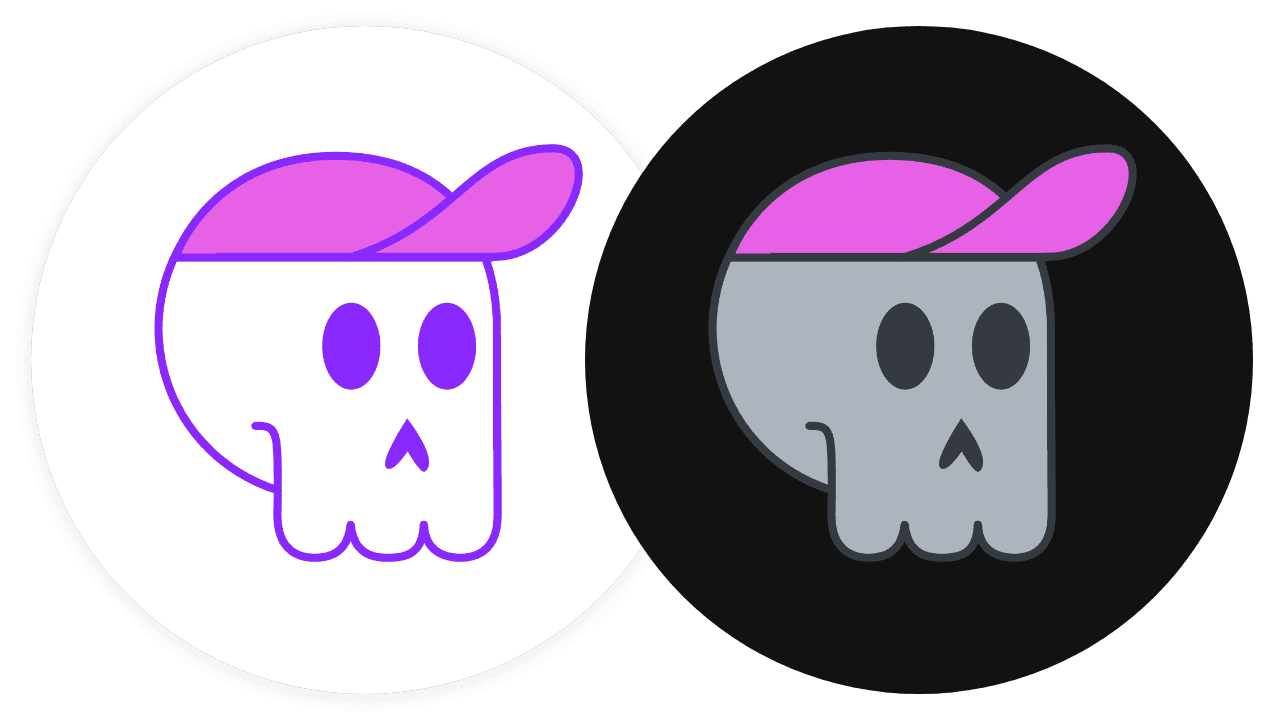
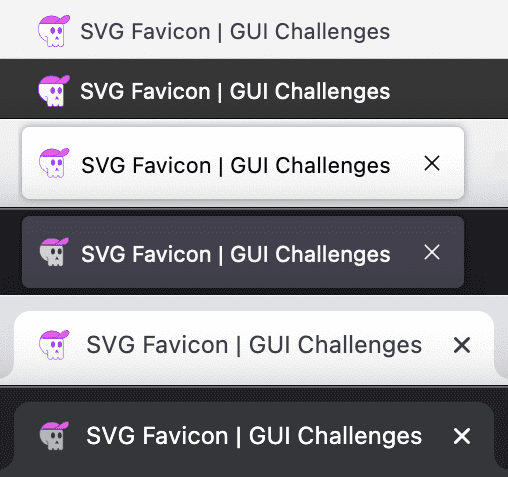 Light and dark tabs in each browser providing an overview of the adaptive icon from top to bottom: Safari, Firefox, Chrome.
## Markup
SVG markup is
[XML](https://developer.mozilla.org/docs/Web/XML/XML_introduction) using
an `.svg` file type extension which allows it to hold more dynamic types of
code.
### Start by making `favicon.svg`
Make a new file called `favicon.svg` and add the following:
```xml
```
> [!NOTE]
> **Note:** This wrapping tag is similar to the `` tag don't you think?
Here's my SVG file, I've sized the `viewBox` relevant to my artwork:
```xml
```
### Adding shapes and paths
Next, add SVG path code. Often this means opening the SVG in a code editor, but
that code is generally not human friendly. Here's a [great guide that guides you
through exporting and optimizing SVG](https://css-tricks.com/using-svg/) from
design tools.
The artwork for this [GUI Challenge](https://web.dev/shows/gui-challenges) came
from a designer who made it in [Adobe
Illustrator](https://www.adobe.com/products/illustrator.html). I heavily
optimized it. I ran it through [SVGOMG](https://jakearchibald.github.io/svgomg/)
and then hand-edited the cruft away.
Here's an example of the `skull` artwork path group from mine, after cleaning
it:
Notice the human readable [ID
selectors](https://developer.mozilla.org/docs/Web/CSS/ID_selectors) like
`#eyes-and-nose` and
[classes](https://developer.mozilla.org/docs/Web/CSS/Class_selectors) like
`.favicon-stroke`. These are from my hand editing, in preparation for CSS.
Adding classes and ID's is not required for your SVG to be an adaptive favicon.
### Link the favicon SVG from HTML
In the `` tag of your HTML, after the `.ico` favicon, add the following:
As the new icon may look identical to the `.ico` version verify that it is being
used. Open the Network panel of DevTools. Filter by images and search for
favicon:

## Styles
Like HTML, you can add a `
...
The light theme version will be the default coloring of my favicon SVG. The
styles I wrote for that were mostly stroke and fill colors:

Next, the most fun part, styling the dark theme version of your favicon. The
styles for that will go into a media query within the style tag:

Mine ended up like this:

I chose to swap the bright purple borders for a nice cool dark gray (`#343a40`),
changed the skull bone color from white to a light cool gray (`#adb5bd`), but
left the pink accent hat.

## Conclusion
Now that you know how I did it, how would you‽ 🙂
Let's diversify our approaches and learn all the ways to build on the web.
Create a demo, [tweet me](https://twitter.com/argyleink) links, and I'll add it
to the community remixes section below!
## Community remixes
- Where I learned of this technique: [@tomayac](https://twitter.com/tomayac) on his [blog](https://blog.tomayac.com/2019/09/21/prefers-color-scheme-in-svg-favicons-for-dark-mode-icons/)