


アプリのショートカットを使用すると、ユーザーはウェブアプリ内で一般的なタスクやおすすめのタスクを簡単に開始できます。アプリアイコンが表示される場所から簡単にタスクにアクセスできるため、ユーザーの生産性が向上し、ウェブアプリのエンゲージメントも高まります。
最新の方法
ウェブアプリ マニフェストでアプリのショートカットを定義する
アプリ ショートカット メニューは、ユーザーのパソコンのタスクバー(Windows)またはドック(macOS)にあるアプリアイコンを右クリックするか、Android でアプリのランチャー アイコンを長押しすることで呼び出されます。
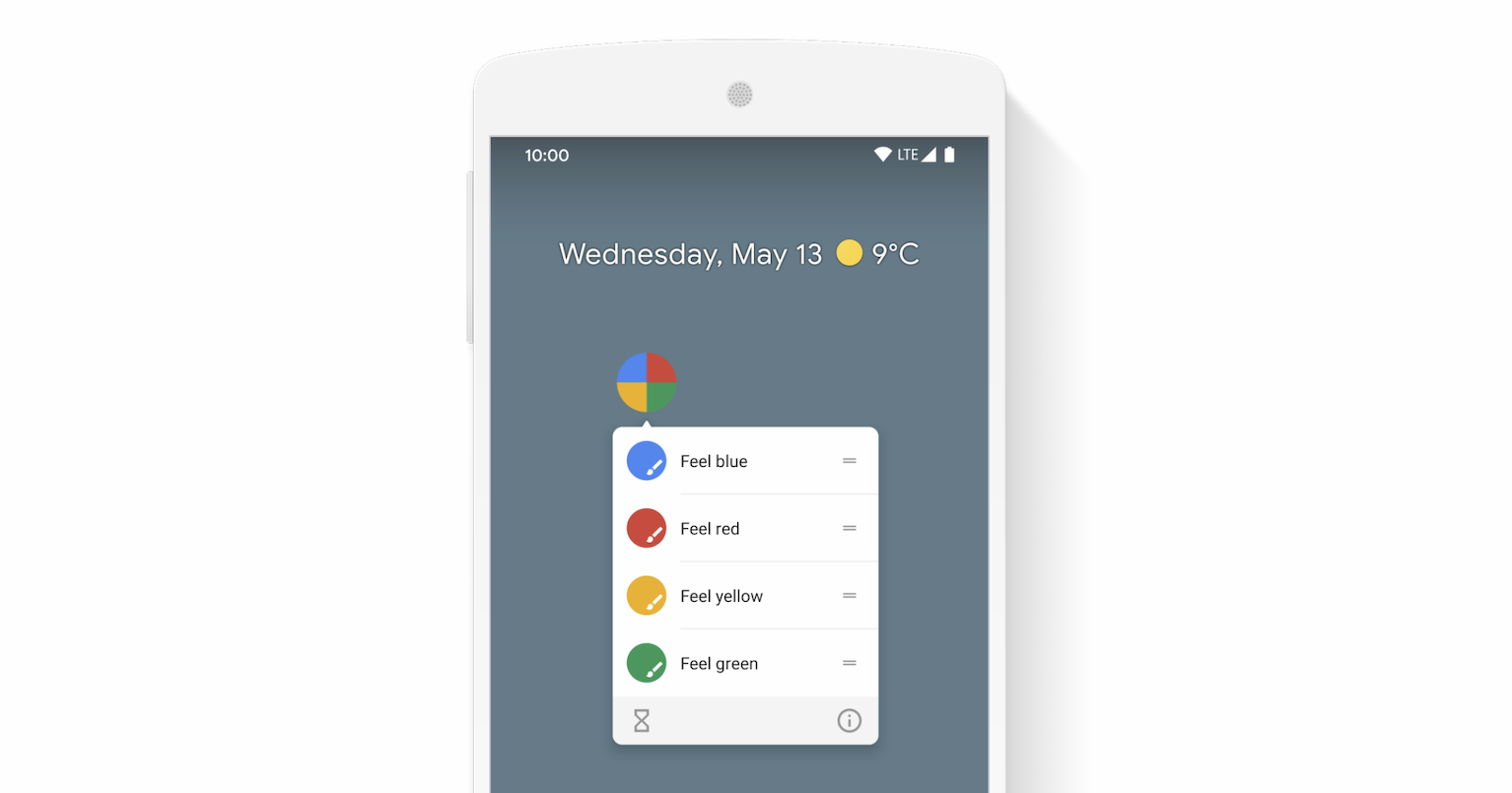
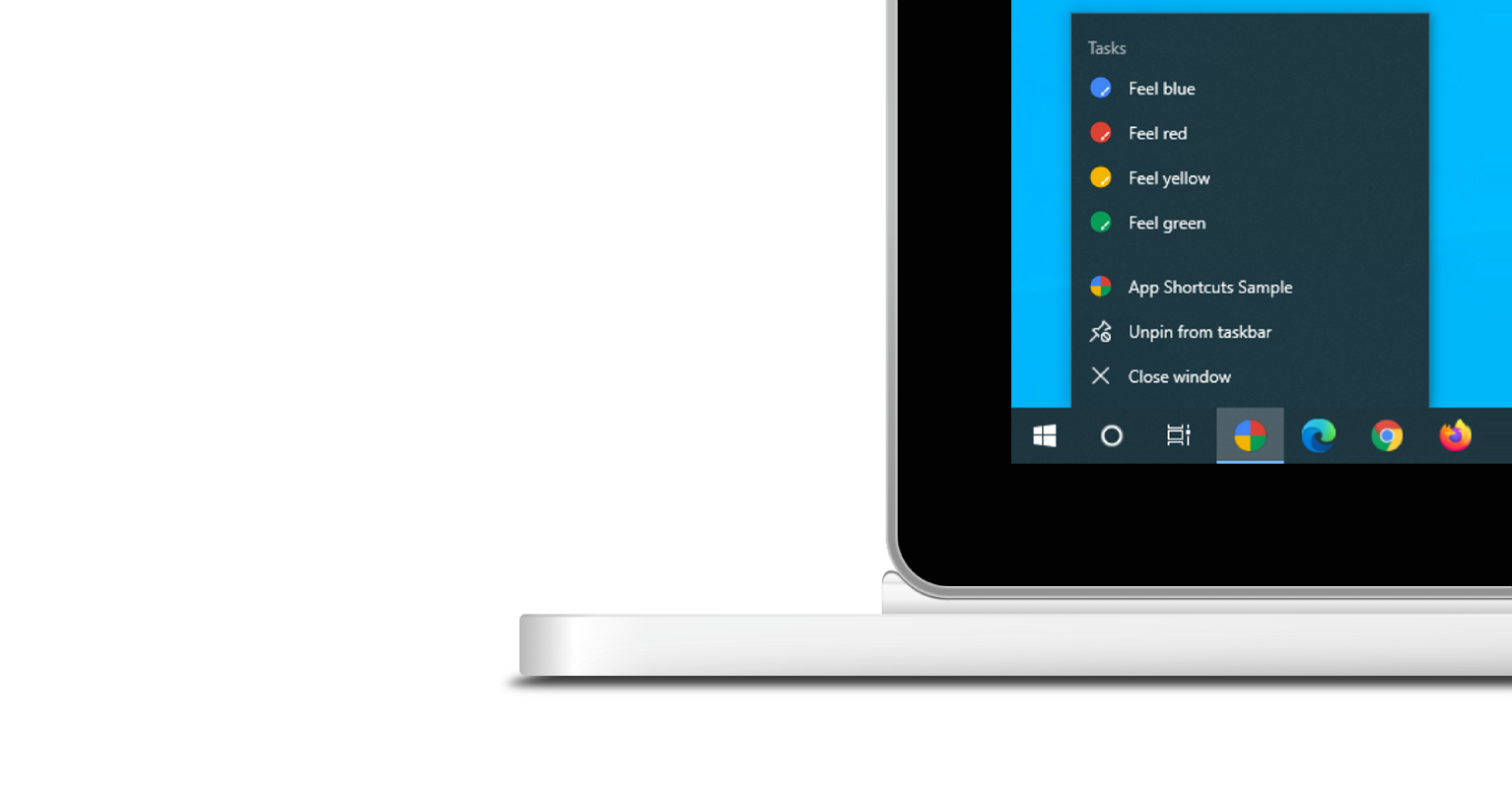
アプリのショートカット メニューは、インストールされているプログレッシブ ウェブアプリでのみ表示されます。インストール要件については、PWA を学ぶモジュールのインストールをご覧ください。
各アプリ ショートカットはユーザーの意図を表し、それぞれがウェブアプリのスコープ内の URL に関連付けられています。ユーザーがアプリ ショートカットを有効にすると、URL が開きます。
アプリ ショートカットは、ウェブアプリ マニフェストの shortcuts 配列メンバーで任意で宣言されます。以下に、ウェブアプリ マニフェストの例を示します。
{
  "name": "Player FM",
  "start_url": "https://player.fm?utm_source=homescreen",
  "shortcuts": [
    {
      "name": "Open Play Later",
      "short_name": "Play Later",
      "description": "View the list of podcasts you saved for later",
      "url": "/play-later?utm_source=homescreen",
      "icons": [{ "src": "/icons/play-later.png", "sizes": "192x192" }]
    },
    {
      "name": "View Subscriptions",
      "short_name": "Subscriptions",
      "description": "View the list of podcasts you listen to",
      "url": "/subscriptions?utm_source=homescreen",
      "icons": [{ "src": "/icons/subscriptions.png", "sizes": "192x192" }]
    }
  ]
}
従来の方法
ユーザーがリンクをブックマーク バーにドラッグできるようにする
アプリがまだインストールされていない場合は、ウェブページからリンクをドラッグしてブラウザのブックマーク バーにドロップするようユーザーに提案できます。これにより、ユーザーはウェブアプリ内で一般的なタスクやおすすめのタスクを簡単に開始できます。
関連情報
デモ
HTML
<!DOCTYPE html>
<html lang="en">
  <head>
    <meta charset="utf-8" />
    <meta name="viewport" content="width=device-width, initial-scale=1" />
    <meta name="color-scheme" content="dark light" />
    <link rel="manifest" href="manifest.json" />
    <title>How to create app shortcuts</title>
    <!-- TODO: Devsite - Removed inline handlers -->
    <!-- <script>
      if ('serviceWorker' in navigator) {
        window.addEventListener('load', () => {
          navigator.serviceWorker.register('sw.js');
        });
      }
    </script>
    <script type="module" src="script.js"></script> -->
  </head>
  <body>
    <h1>How to create app shortcuts</h1>
    <ol>
      <li>
        You can drag these <a href="blue.html">blue page</a> or
        <a href="red.html">red page</a> links to the bookmarks bar
        and access them later.
      </li>
      <li>
        Install the app by clicking the button below. After the installation,
        the button is disabled.
        <p>
          <button disabled type="button">Install</button>
        </p>
      </li>
    </ol>
  </body>
</html>
JS
        // The install button.
const installButton = document.querySelector('button');

// Only relevant for browsers that support installation.
if ('BeforeInstallPromptEvent' in window) {
  // Variable to stash the `BeforeInstallPromptEvent`.
  let installEvent = null;

  // Function that will be run when the app is installed.
  const onInstall = () => {
    // Disable the install button.
    installButton.disabled = true;
    // No longer needed.
    installEvent = null;
  };

  window.addEventListener('beforeinstallprompt', (event) => {
    // Do not show the install prompt quite yet.
    event.preventDefault();
    // Stash the `BeforeInstallPromptEvent` for later.
    installEvent = event;
    // Enable the install button.
    installButton.disabled = false;
  });

  installButton.addEventListener('click', async () => {
    // If there is no stashed `BeforeInstallPromptEvent`, return.
    if (!installEvent) {
      return;
    }
    // Use the stashed `BeforeInstallPromptEvent` to prompt the user.
    installEvent.prompt();
    const result = await installEvent.userChoice;
    // If the user installs the app, run `onInstall()`.
    if (result.outcome === 'accepted') {
      onInstall();
    }
  });

  // The user can decide to ignore the install button
  // and just use the browser prompt directly. In this case
  // likewise run `onInstall()`.
  window.addEventListener('appinstalled', () => {
    onInstall();
  });
}