


میانبرهای برنامه به کاربران کمک میکنند تا به سرعت وظایف رایج یا توصیهشده را در برنامه وب شما شروع کنند. دسترسی آسان به این وظایف از هر جایی که آیکون برنامه نمایش داده میشود، بهرهوری کاربران را افزایش داده و همچنین تعامل آنها را با برنامه وب افزایش میدهد.
روش مدرن
تعریف میانبرهای برنامه در مانیفست برنامه وب
منوی میانبرهای برنامه با کلیک راست روی آیکون برنامه در نوار وظیفه (ویندوز) یا داک (مک) روی دسکتاپ کاربر، یا با لمس و نگه داشتن آیکون لانچر برنامه در اندروید، فراخوانی میشود.
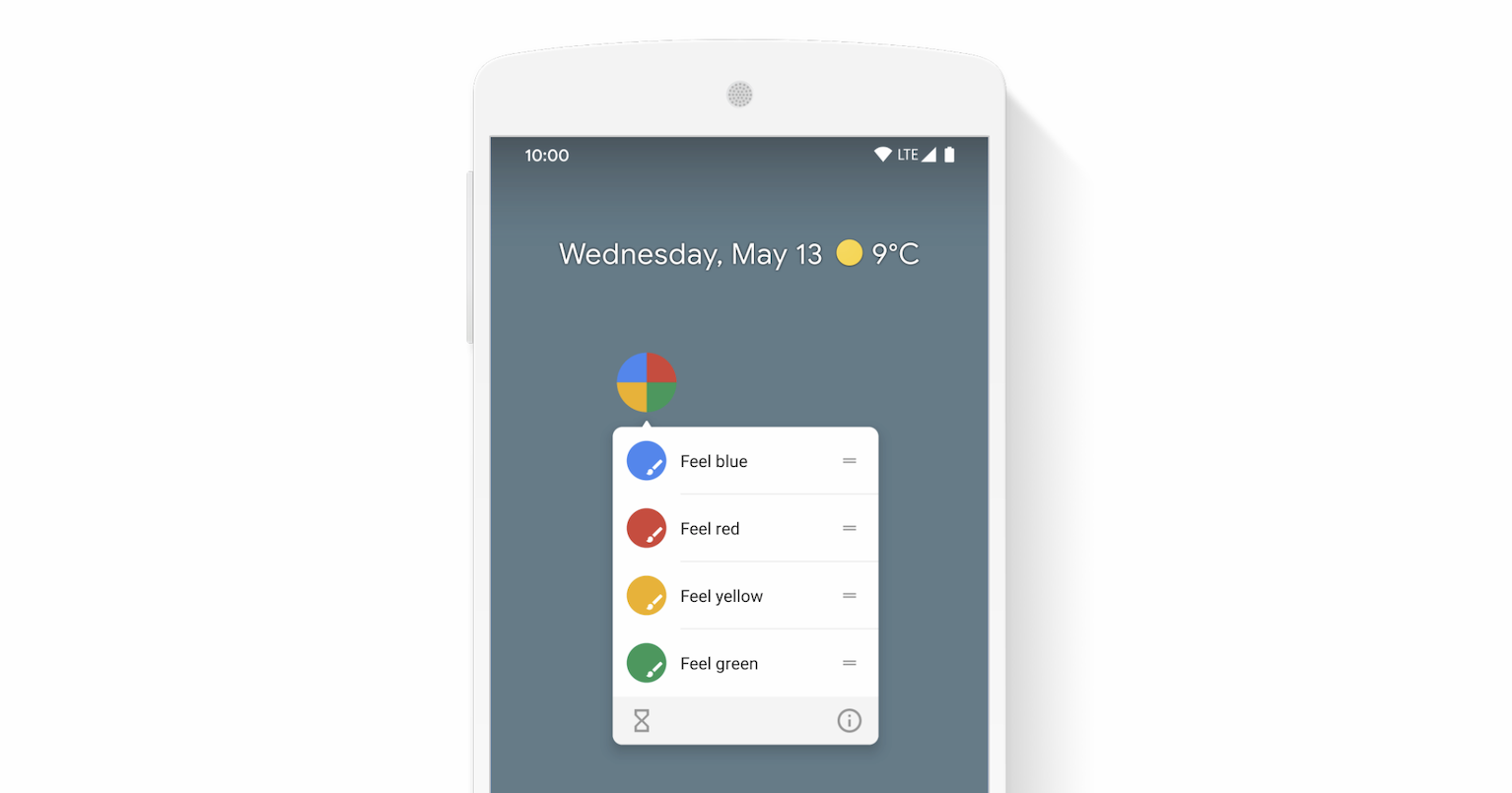
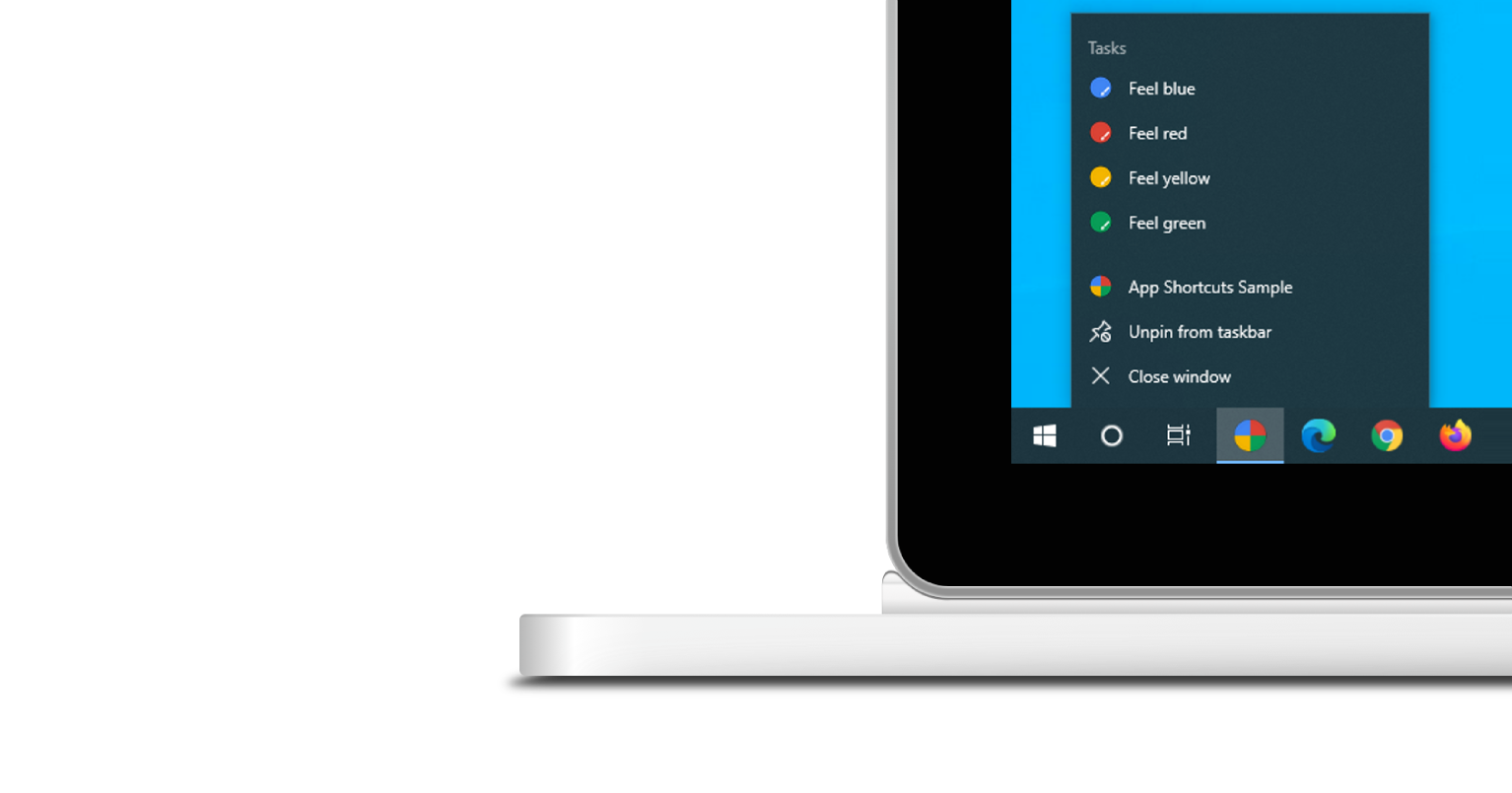
منوی میانبرهای برنامه فقط برای برنامههای وب پیشروندهای که نصب شدهاند نمایش داده میشود. برای آشنایی با الزامات نصب ، بخش نصب را در ماژول یادگیری PWA بررسی کنید.
هر میانبر برنامه، یک هدف کاربر را بیان میکند که هر کدام با یک URL در محدوده برنامه وب شما مرتبط هستند. URL زمانی باز میشود که کاربر میانبر برنامه را فعال کند.
میانبرهای برنامه به صورت اختیاری در عضو آرایه shortcuts از مانیفست برنامه وب تعریف میشوند. در زیر مثالی از یک مانیفست برنامه وب بالقوه آورده شده است.
{
  "name": "Player FM",
  "start_url": "https://player.fm?utm_source=homescreen",
  "shortcuts": [
    {
      "name": "Open Play Later",
      "short_name": "Play Later",
      "description": "View the list of podcasts you saved for later",
      "url": "/play-later?utm_source=homescreen",
      "icons": [{ "src": "/icons/play-later.png", "sizes": "192x192" }]
    },
    {
      "name": "View Subscriptions",
      "short_name": "Subscriptions",
      "description": "View the list of podcasts you listen to",
      "url": "/subscriptions?utm_source=homescreen",
      "icons": [{ "src": "/icons/subscriptions.png", "sizes": "192x192" }]
    }
  ]
}
روش کلاسیک
به کاربر اجازه دهید لینکها را به نوار نشانکها بکشد
اگر برنامه هنوز نصب نشده است، میتوانید به کاربر پیشنهاد دهید که چند لینک را از صفحه وب شما بکشد و در نوار نشانک مرورگر خود رها کند. به این ترتیب، آنها میتوانند به سرعت کارهای رایج یا توصیه شده را در برنامه وب شما شروع کنند.
مطالعه بیشتر
نسخه آزمایشی
اچتیامال
<!DOCTYPE html>
<html lang="en">
  <head>
    <meta charset="utf-8" />
    <meta name="viewport" content="width=device-width, initial-scale=1" />
    <meta name="color-scheme" content="dark light" />
    <link rel="manifest" href="manifest.json" />
    <title>How to create app shortcuts</title>
    <!-- TODO: Devsite - Removed inline handlers -->
    <!-- <script>
      if ('serviceWorker' in navigator) {
        window.addEventListener('load', () => {
          navigator.serviceWorker.register('sw.js');
        });
      }
    </script>
    <script type="module" src="script.js"></script> -->
  </head>
  <body>
    <h1>How to create app shortcuts</h1>
    <ol>
      <li>
        You can drag these <a href="blue.html">blue page</a> or
        <a href="red.html">red page</a> links to the bookmarks bar
        and access them later.
      </li>
      <li>
        Install the app by clicking the button below. After the installation,
        the button is disabled.
        <p>
          <button disabled type="button">Install</button>
        </p>
      </li>
    </ol>
  </body>
</html>جیاس
        // The install button.
const installButton = document.querySelector('button');

// Only relevant for browsers that support installation.
if ('BeforeInstallPromptEvent' in window) {
  // Variable to stash the `BeforeInstallPromptEvent`.
  let installEvent = null;

  // Function that will be run when the app is installed.
  const onInstall = () => {
    // Disable the install button.
    installButton.disabled = true;
    // No longer needed.
    installEvent = null;
  };

  window.addEventListener('beforeinstallprompt', (event) => {
    // Do not show the install prompt quite yet.
    event.preventDefault();
    // Stash the `BeforeInstallPromptEvent` for later.
    installEvent = event;
    // Enable the install button.
    installButton.disabled = false;
  });

  installButton.addEventListener('click', async () => {
    // If there is no stashed `BeforeInstallPromptEvent`, return.
    if (!installEvent) {
      return;
    }
    // Use the stashed `BeforeInstallPromptEvent` to prompt the user.
    installEvent.prompt();
    const result = await installEvent.userChoice;
    // If the user installs the app, run `onInstall()`.
    if (result.outcome === 'accepted') {
      onInstall();
    }
  });

  // The user can decide to ignore the install button
  // and just use the browser prompt directly. In this case
  // likewise run `onInstall()`.
  window.addEventListener('appinstalled', () => {
    onInstall();
  });
}