


Lối tắt ứng dụng giúp người dùng nhanh chóng bắt đầu các tác vụ thông thường hoặc tác vụ được đề xuất trong ứng dụng web của bạn. Việc dễ dàng truy cập vào những tác vụ đó ở bất kỳ nơi nào biểu tượng ứng dụng xuất hiện sẽ nâng cao năng suất của người dùng cũng như tăng mức độ gắn bó của họ với ứng dụng web.
Cách làm hiện đại
Xác định lối tắt ứng dụng trong tệp kê khai ứng dụng web
Trình đơn lối tắt của ứng dụng sẽ xuất hiện khi người dùng nhấp chuột phải vào biểu tượng ứng dụng trên thanh tác vụ (Windows) hoặc thanh dock (macOS) trên máy tính, hoặc khi người dùng chạm và giữ biểu tượng trình chạy của ứng dụng trên Android.
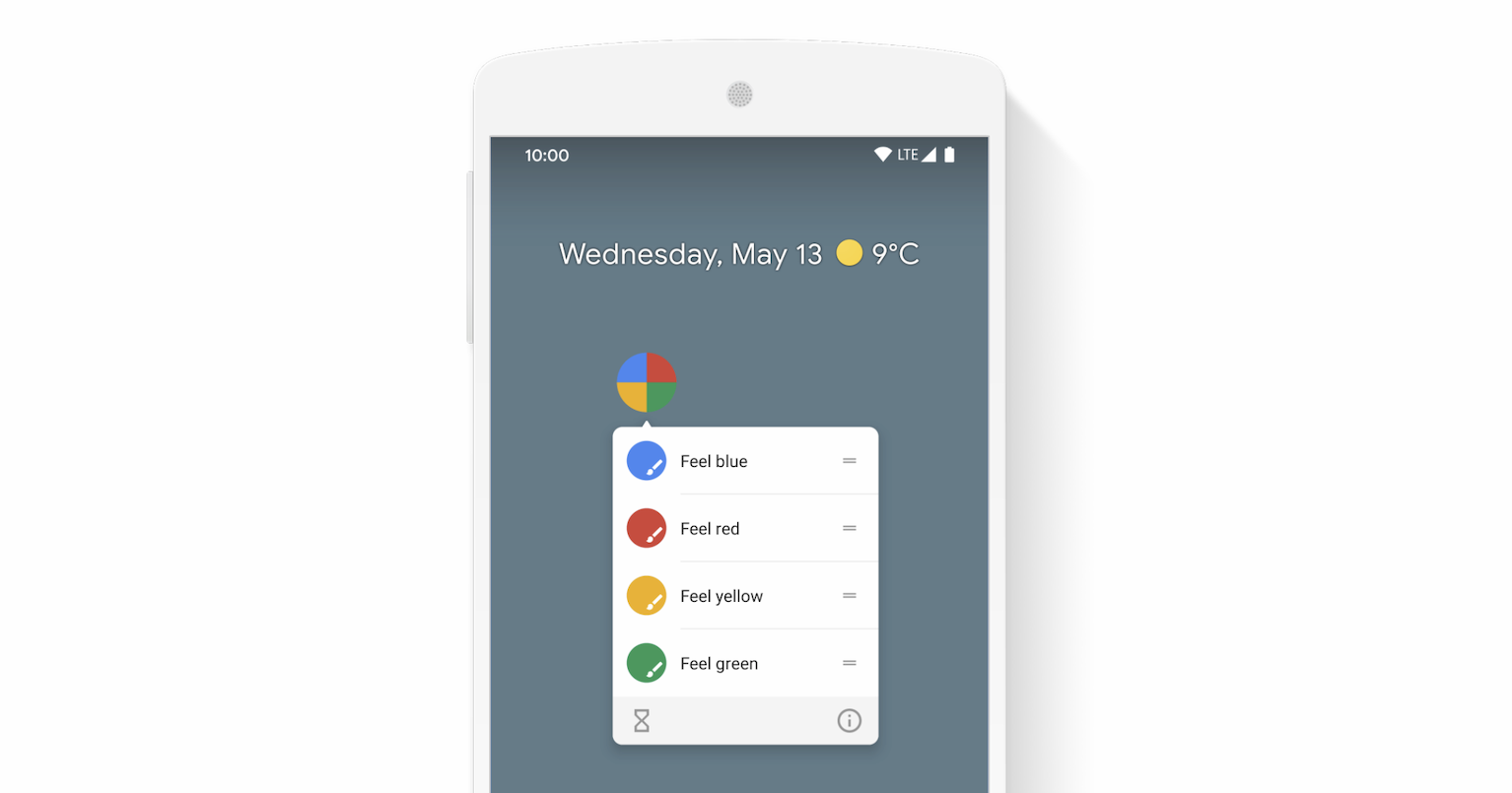
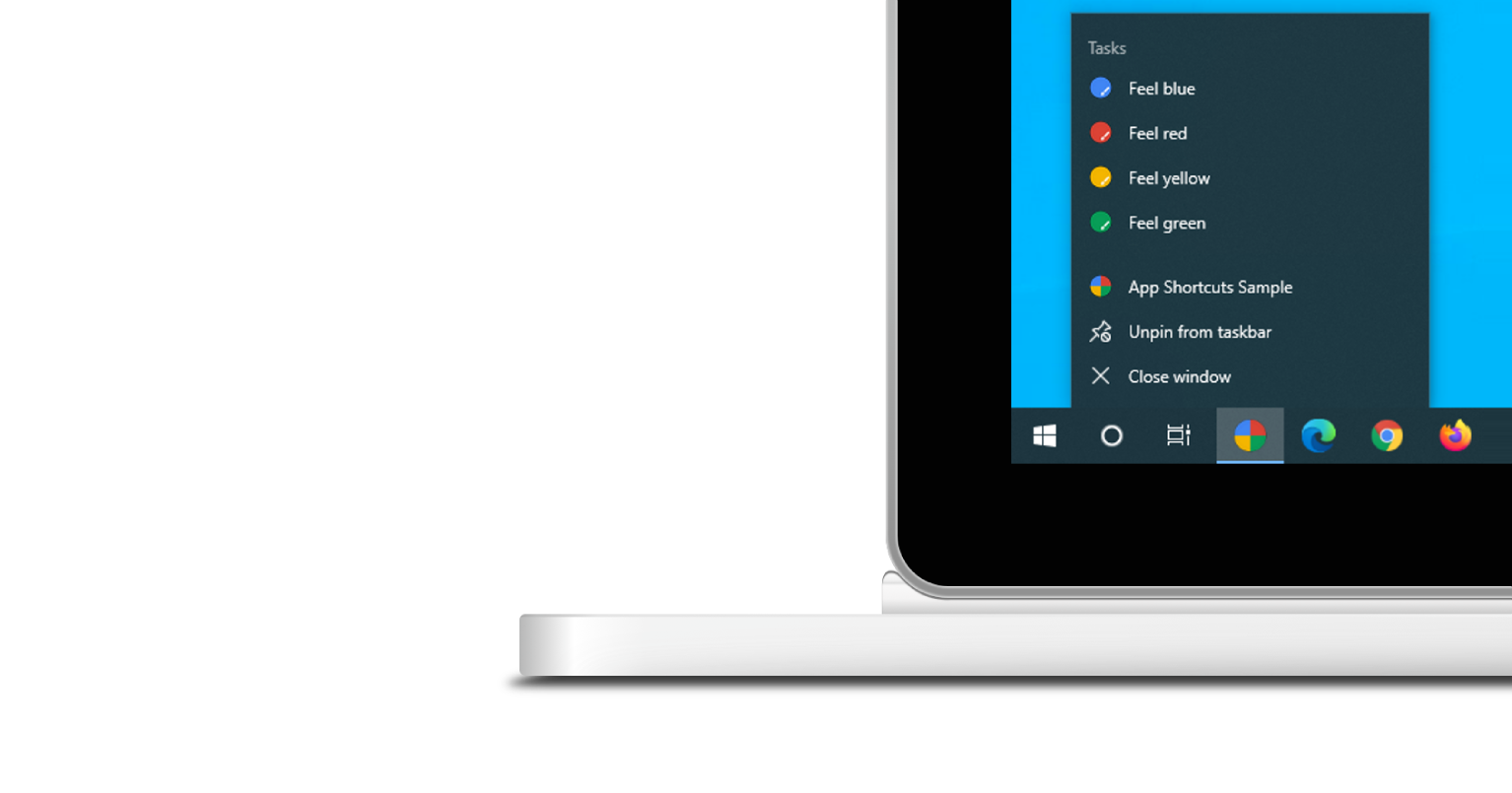
Trình đơn lối tắt ứng dụng chỉ xuất hiện đối với những Ứng dụng web tiến bộ đã được cài đặt. Hãy xem phần Cài đặt trong mô-đun Tìm hiểu về PWA của chúng tôi để tìm hiểu về các yêu cầu liên quan đến khả năng cài đặt.
Mỗi lối tắt ứng dụng thể hiện một ý định của người dùng, mỗi ý định được liên kết với một URL trong phạm vi ứng dụng web của bạn. URL sẽ mở ra khi người dùng kích hoạt lối tắt ứng dụng.
Bạn có thể khai báo các lối tắt của ứng dụng trong thành phần mảng shortcuts của tệp kê khai ứng dụng web. Dưới đây là một ví dụ về tệp kê khai ứng dụng web tiềm năng.
{
  "name": "Player FM",
  "start_url": "https://player.fm?utm_source=homescreen",
  "shortcuts": [
    {
      "name": "Open Play Later",
      "short_name": "Play Later",
      "description": "View the list of podcasts you saved for later",
      "url": "/play-later?utm_source=homescreen",
      "icons": [{ "src": "/icons/play-later.png", "sizes": "192x192" }]
    },
    {
      "name": "View Subscriptions",
      "short_name": "Subscriptions",
      "description": "View the list of podcasts you listen to",
      "url": "/subscriptions?utm_source=homescreen",
      "icons": [{ "src": "/icons/subscriptions.png", "sizes": "192x192" }]
    }
  ]
}
Cách cổ điển
Cho phép người dùng kéo đường liên kết vào thanh dấu trang
Nếu chưa cài đặt ứng dụng, bạn có thể đề nghị người dùng kéo một số đường liên kết từ trang web của bạn và thả chúng vào thanh dấu trang của trình duyệt. Nhờ đó, họ có thể nhanh chóng bắt đầu các thao tác phổ biến hoặc thao tác được đề xuất trong ứng dụng web của bạn.
Tài liệu đọc thêm
Bản minh hoạ
HTML
<!DOCTYPE html>
<html lang="en">
  <head>
    <meta charset="utf-8" />
    <meta name="viewport" content="width=device-width, initial-scale=1" />
    <meta name="color-scheme" content="dark light" />
    <link rel="manifest" href="manifest.json" />
    <title>How to create app shortcuts</title>
    <!-- TODO: Devsite - Removed inline handlers -->
    <!-- <script>
      if ('serviceWorker' in navigator) {
        window.addEventListener('load', () => {
          navigator.serviceWorker.register('sw.js');
        });
      }
    </script>
    <script type="module" src="script.js"></script> -->
  </head>
  <body>
    <h1>How to create app shortcuts</h1>
    <ol>
      <li>
        You can drag these <a href="blue.html">blue page</a> or
        <a href="red.html">red page</a> links to the bookmarks bar
        and access them later.
      </li>
      <li>
        Install the app by clicking the button below. After the installation,
        the button is disabled.
        <p>
          <button disabled type="button">Install</button>
        </p>
      </li>
    </ol>
  </body>
</html>
JS
        // The install button.
const installButton = document.querySelector('button');

// Only relevant for browsers that support installation.
if ('BeforeInstallPromptEvent' in window) {
  // Variable to stash the `BeforeInstallPromptEvent`.
  let installEvent = null;

  // Function that will be run when the app is installed.
  const onInstall = () => {
    // Disable the install button.
    installButton.disabled = true;
    // No longer needed.
    installEvent = null;
  };

  window.addEventListener('beforeinstallprompt', (event) => {
    // Do not show the install prompt quite yet.
    event.preventDefault();
    // Stash the `BeforeInstallPromptEvent` for later.
    installEvent = event;
    // Enable the install button.
    installButton.disabled = false;
  });

  installButton.addEventListener('click', async () => {
    // If there is no stashed `BeforeInstallPromptEvent`, return.
    if (!installEvent) {
      return;
    }
    // Use the stashed `BeforeInstallPromptEvent` to prompt the user.
    installEvent.prompt();
    const result = await installEvent.userChoice;
    // If the user installs the app, run `onInstall()`.
    if (result.outcome === 'accepted') {
      onInstall();
    }
  });

  // The user can decide to ignore the install button
  // and just use the browser prompt directly. In this case
  // likewise run `onInstall()`.
  window.addEventListener('appinstalled', () => {
    onInstall();
  });
}