

了解如何使用 Gamepad API 将网页游戏提升到新的水平。

Chrome 的离线页面彩蛋是历史上最广为人知的秘密之一([citation needed],但为了戏剧效果,我们还是这么说)。如果您按下空格键,或者在移动设备上点按小恐龙,离线页面就会变成一个可玩的街机游戏。您可能知道,当您想玩游戏时,实际上不必离线:在 Chrome 中,您只需前往 about://dino,或者,如果您是极客,可以浏览到 about://network-error/-106。但您知道吗?
Chrome 恐龙游戏每月的游玩次数高达 2.7 亿次。
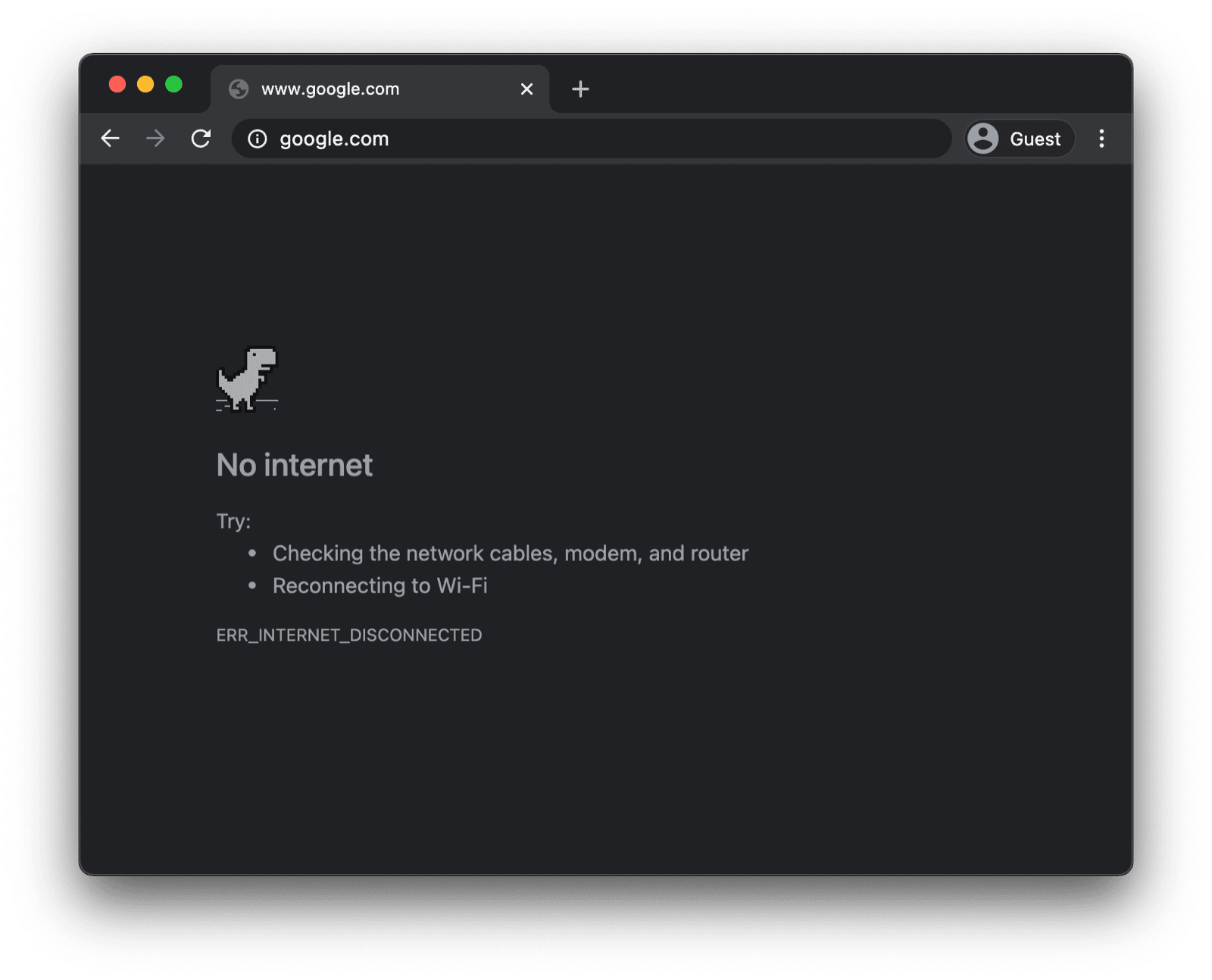
另一个可能更有用但您可能不知道的事实是,在街机模式下,您可以使用游戏手柄玩游戏。截至撰写本文时,游戏手柄支持大约在一年前由 Reilly Grant 在提交中添加。如您所见,这款游戏与 Chromium 项目的其他部分一样,完全开源。在本文中,我将向您展示如何使用 Gamepad API。
使用 Gamepad API
功能检测和浏览器支持
Gamepad API 在桌面设备和移动设备上都具有出色的浏览器支持。您可以使用以下代码段检测是否支持 Gamepad API:
if ('getGamepads' in navigator) {
  // The API is supported!
}
浏览器如何表示游戏手柄
浏览器将游戏手柄表示为 Gamepad 对象。Gamepad 具有以下属性:
id:游戏手柄的标识字符串。此字符串用于标识所连接游戏手柄设备的品牌或样式。displayId:关联的VRDisplay的VRDisplay.displayId(如果相关)。index:导航器中游戏手柄的索引。connected:指示游戏手柄是否仍连接到系统。hand:一个枚举,用于定义控制器由哪只手握持或最可能由哪只手握持。timestamp:此游戏手柄的数据上次更新的时间。mapping:此设备使用的按钮和轴映射,可为"standard"或"xr-standard"。pose:一个GamepadPose对象,表示与 WebVR 控制器关联的姿势信息。axes:游戏手柄所有轴的值数组,线性归一化到-1.0–1.0范围内。buttons:一个由游戏手柄所有按钮的按钮状态组成的数组。
请注意,按钮可以是数字按钮(按下或未按下)或模拟按钮(例如,按下 78%)。因此,按钮会报告为 GamepadButton 对象,并具有以下属性:
pressed:按钮的按下状态(如果按钮已按下,则为true;如果未按下,则为false)。touched:按钮的轻触状态。如果按钮能够检测触摸,则当按钮被触摸时,此属性为true,否则为false。value:对于具有模拟传感器的按钮,此属性表示按钮被按下的程度,线性归一化到0.0–1.0范围内。hapticActuators:一个包含GamepadHapticActuator对象的数组,其中每个对象都表示控制器上可用的触感反馈硬件。
您可能还会遇到一个 vibrationActuator 属性,具体取决于您的浏览器和游戏手柄。它支持两种震动效果:
- 双重震动:由两个偏心转子马达(游戏手柄的每个握把中各有一个)产生的触感反馈效果。
- Trigger-Rumble:由两个独立马达产生的触感反馈效果,其中一个马达位于游戏手柄的每个扳机键中。
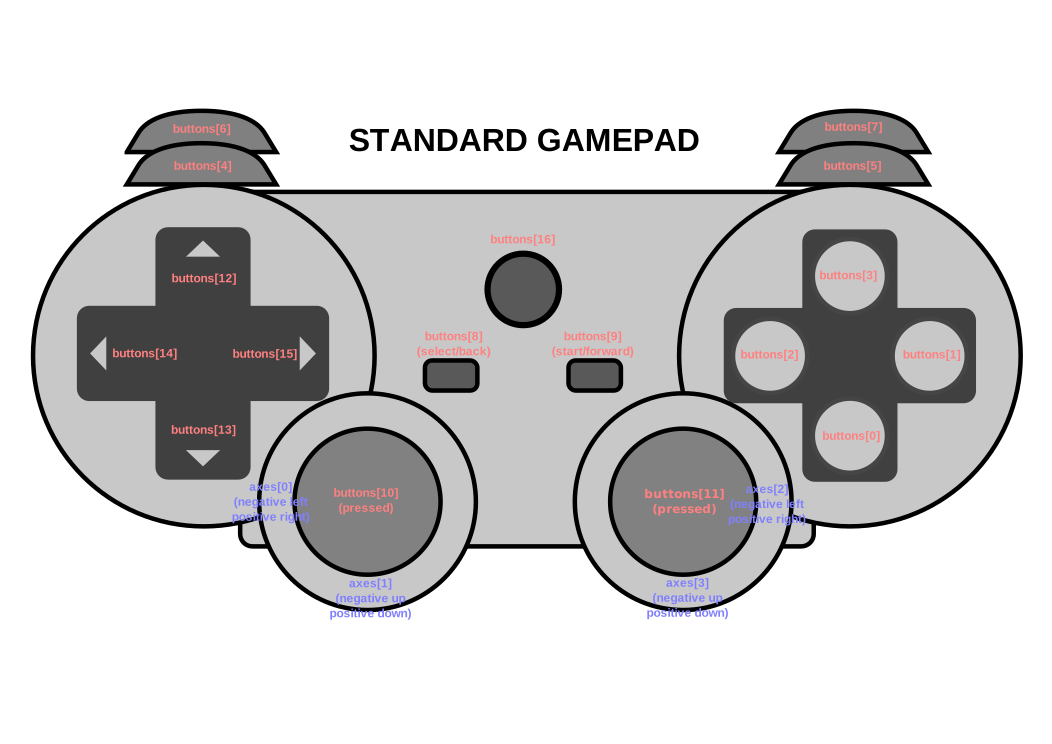
以下示意图直接取自规范,展示了通用游戏手柄上按钮和轴的映射和排列。
游戏手柄连接时的通知
如需了解游戏手柄何时连接,请监听在 window 对象上触发的 gamepadconnected 事件。当用户连接游戏手柄(可以通过 USB 或蓝牙连接)时,系统会触发 GamepadEvent,其中包含游戏手柄的详细信息,这些信息存储在名为 gamepad 的属性中。
在下文中,您可以看到一个 Xbox 360 控制器的示例(是的,我喜欢复古游戏)。
window.addEventListener('gamepadconnected', (event) => {
  console.log('✅ 🎮 A gamepad was connected:', event.gamepad);
  /*
    gamepad: Gamepad
    axes: (4) [0, 0, 0, 0]
    buttons: (17) [GamepadButton, GamepadButton, GamepadButton, GamepadButton, GamepadButton, GamepadButton, GamepadButton, GamepadButton, GamepadButton, GamepadButton, GamepadButton, GamepadButton, GamepadButton, GamepadButton, GamepadButton, GamepadButton, GamepadButton]
    connected: true
    id: "Xbox 360 Controller (STANDARD GAMEPAD Vendor: 045e Product: 028e)"
    index: 0
    mapping: "standard"
    timestamp: 6563054.284999998
    vibrationActuator: GamepadHapticActuator {type: "dual-rumble"}
  */
});
游戏手柄断开连接时的通知
收到游戏手柄断开连接通知的方式与检测连接的方式类似。
这次,应用会监听 gamepaddisconnected 事件。请注意,在以下示例中,当我拔下 Xbox 360 控制器时,connected 现在变为 false。
window.addEventListener('gamepaddisconnected', (event) => {
  console.log('❌ 🎮 A gamepad was disconnected:', event.gamepad);
  /*
    gamepad: Gamepad
    axes: (4) [0, 0, 0, 0]
    buttons: (17) [GamepadButton, GamepadButton, GamepadButton, GamepadButton, GamepadButton, GamepadButton, GamepadButton, GamepadButton, GamepadButton, GamepadButton, GamepadButton, GamepadButton, GamepadButton, GamepadButton, GamepadButton, GamepadButton, GamepadButton]
    connected: false
    id: "Xbox 360 Controller (STANDARD GAMEPAD Vendor: 045e Product: 028e)"
    index: 0
    mapping: "standard"
    timestamp: 6563054.284999998
    vibrationActuator: null
  */
});
游戏循环中的游戏手柄
如需获取游戏手柄,首先要调用 navigator.getGamepads(),该方法会返回一个包含 Gamepad 项的数组。Chrome 中的数组始终具有固定的长度,包含四个项。如果连接的游戏手柄数量为零或少于四个,则某一项可能只是 null。请务必检查数组的所有项,并注意游戏手柄会“记住”其插槽,并且可能并不总是出现在第一个可用插槽中。
// When no gamepads are connected:
navigator.getGamepads();
// (4) [null, null, null, null]
如果连接了一个或多个游戏手柄,但 navigator.getGamepads() 仍报告 null 项,您可能需要通过按任意按钮来“唤醒”每个游戏手柄。然后,您可以在游戏循环中轮询游戏手柄状态,如以下代码所示。
const pollGamepads = () => {
  // Always call `navigator.getGamepads()` inside of
  // the game loop, not outside.
  const gamepads = navigator.getGamepads();
  for (const gamepad of gamepads) {
    // Disregard empty slots.
    if (!gamepad) {
      continue;
    }
    // Process the gamepad state.
    console.log(gamepad);
  }
  // Call yourself upon the next animation frame.
  // (Typically this happens every 60 times per second.)
  window.requestAnimationFrame(pollGamepads);
};
// Kick off the initial game loop iteration.
pollGamepads();
振动致动器
vibrationActuator 属性会返回 GamepadHapticActuator 对象,该对象对应于马达或其他致动器的配置,这些马达或致动器可以施加力以实现触感反馈。您可以通过调用 Gamepad.vibrationActuator.playEffect() 来播放触感反馈效果。唯一有效的效果类型为 'dual-rumble' 和 'trigger-rumble'。
支持的震动效果
if (gamepad.vibrationActuator.effects.includes('trigger-rumble')) {
  // Trigger rumble supported.
} else if (gamepad.vibrationActuator.effects.includes('dual-rumble')) {
  // Dual rumble supported.
} else {
  // Rumble effects aren't supported.
}
双重震动
双重震动是指在标准游戏手柄的每个手柄中都配备一个偏心旋转质量振动电机的触感反馈配置。在此配置中,任一马达都能够使整个游戏手柄振动。两个质量块不相等,因此可以结合各自的效果来创造更复杂的触感效果。双重震动效果由四个参数定义:
duration:设置振动效果的时长(以毫秒为单位)。startDelay:设置振动开始前的延迟时长。strongMagnitude和weakMagnitude:设置较重和较轻的偏心转子电机的振动强度级别,并将其归一化到0.0–1.0范围内。
// This assumes a `Gamepad` as the value of the `gamepad` variable.
const dualRumble = (gamepad, delay = 0, duration = 100, weak = 1.0, strong = 1.0) => {
  if (!('vibrationActuator' in gamepad)) {
    return;
  }
  gamepad.vibrationActuator.playEffect('dual-rumble', {
    // Start delay in ms.
    startDelay: delay,
    // Duration in ms.
    duration: duration,
    // The magnitude of the weak actuator (between 0 and 1).
    weakMagnitude: weak,
    // The magnitude of the strong actuator (between 0 and 1).
    strongMagnitude: strong,
  });
};
触发器振动
扳机键震动是由两个独立马达产生的触感反馈效果,每个马达位于游戏手柄的一个扳机键中。
// This assumes a `Gamepad` as the value of the `gamepad` variable.
const triggerRumble = (gamepad, delay = 0, duration = 100, weak = 1.0, strong = 1.0) => {
  if (!('vibrationActuator' in gamepad)) {
    return;
  }
  // Feature detection.
  if (!('effects' in gamepad.vibrationActuator) || !gamepad.vibrationActuator.effects.includes('trigger-rumble')) {
    return;
  }
  gamepad.vibrationActuator.playEffect('trigger-rumble', {
    // Duration in ms.
    duration: duration,
    // The left trigger (between 0 and 1).
    leftTrigger: leftTrigger,
    // The right trigger (between 0 and 1).
    rightTrigger: rightTrigger,
  });
};
与权限政策集成
Gamepad API 规范定义了由字符串 "gamepad" 标识的政策控制的功能。其默认 allowlist 为 "self"。文档的权限政策决定了该文档中的任何内容是否可以访问 navigator.getGamepads()。如果在任何文档中停用,则该文档中的任何内容都不得使用 navigator.getGamepads(),也不会触发 gamepadconnected 和 gamepaddisconnected 事件。
<iframe src="index.html" allow="gamepad"></iframe>
演示
以下示例中嵌入了一个游戏手柄测试器演示。您可以在 GitHub 上找到相关源代码。如需试用演示,请使用 USB 或蓝牙连接游戏手柄,然后按其任意按钮或移动其任意轴。
彩蛋:在 web.dev 上玩 Chrome 恐龙游戏
您可以在此网站上使用游戏手柄玩 Chrome 恐龙游戏。您可以在 GitHub 上找到相关源代码。
查看 trex-runner.js 中的游戏手柄轮询实现,并注意它是如何模拟按键的。
为了让 Chrome 恐龙游戏手柄演示正常运行,我从核心 Chromium 项目中提取了 Chrome 恐龙游戏(更新了 Arnelle Ballane 之前的工作),将其放置在独立网站上,通过添加闪避和振动效果扩展了现有的游戏手柄 API 实现,创建了全屏模式,Mehul Satardekar 贡献了深色模式实现。祝您游戏愉快!
实用链接
致谢
本文档由 François Beaufort 和 Joe Medley 审核。Gamepad API 规范由 Steve Agoston、James Hollyer 和 Matt Reynolds 共同编辑。前规范编辑者是 Brandon Jones、Scott Graham 和 Ted Mielczarek。Gamepad Extensions 规范由 Brandon Jones 编写。