


קיצורי דרך לאפליקציות עוזרים למשתמשים להתחיל במהירות משימות נפוצות או מומלצות באפליקציית האינטרנט. גישה קלה למשימות האלה מכל מקום שבו מוצג סמל האפליקציה תשפר את הפרודוקטיביות של המשתמשים ותגדיל את רמת המעורבות שלהם עם אפליקציית האינטרנט.
הדרך המודרנית
הגדרת קיצורי דרך של אפליקציות בקובץ מניפסט של אפליקציה של אתר
כדי לפתוח את תפריט קיצורי הדרך של האפליקציה, לוחצים לחיצה ימנית על סמל האפליקציה בסרגל המשימות (Windows) או בסרגל האפליקציות הנפוצות (Dock) בשולחן העבודה של המשתמש, או לוחצים לחיצה ארוכה על סמל מרכז האפליקציות של האפליקציה ב-Android.
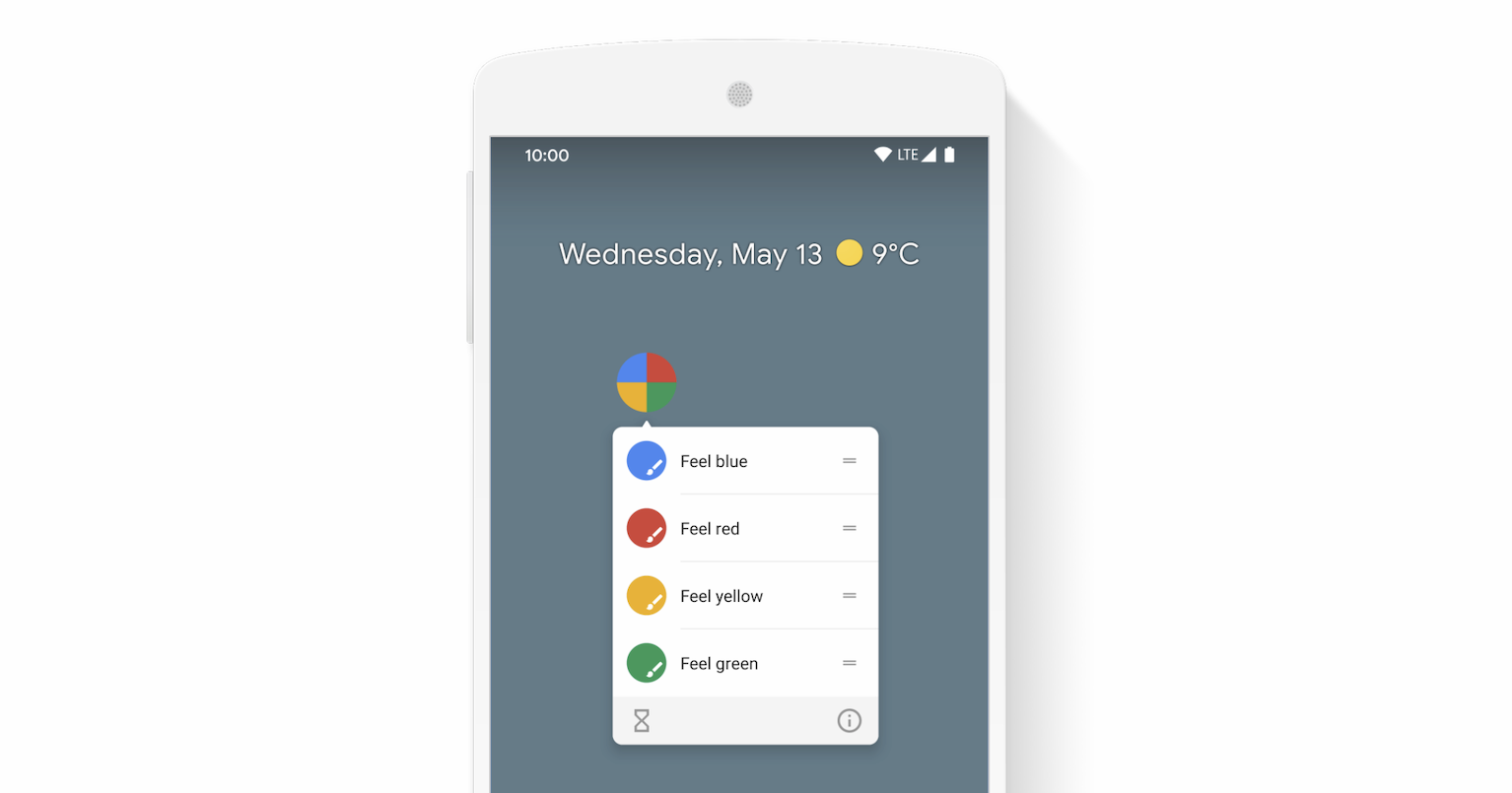
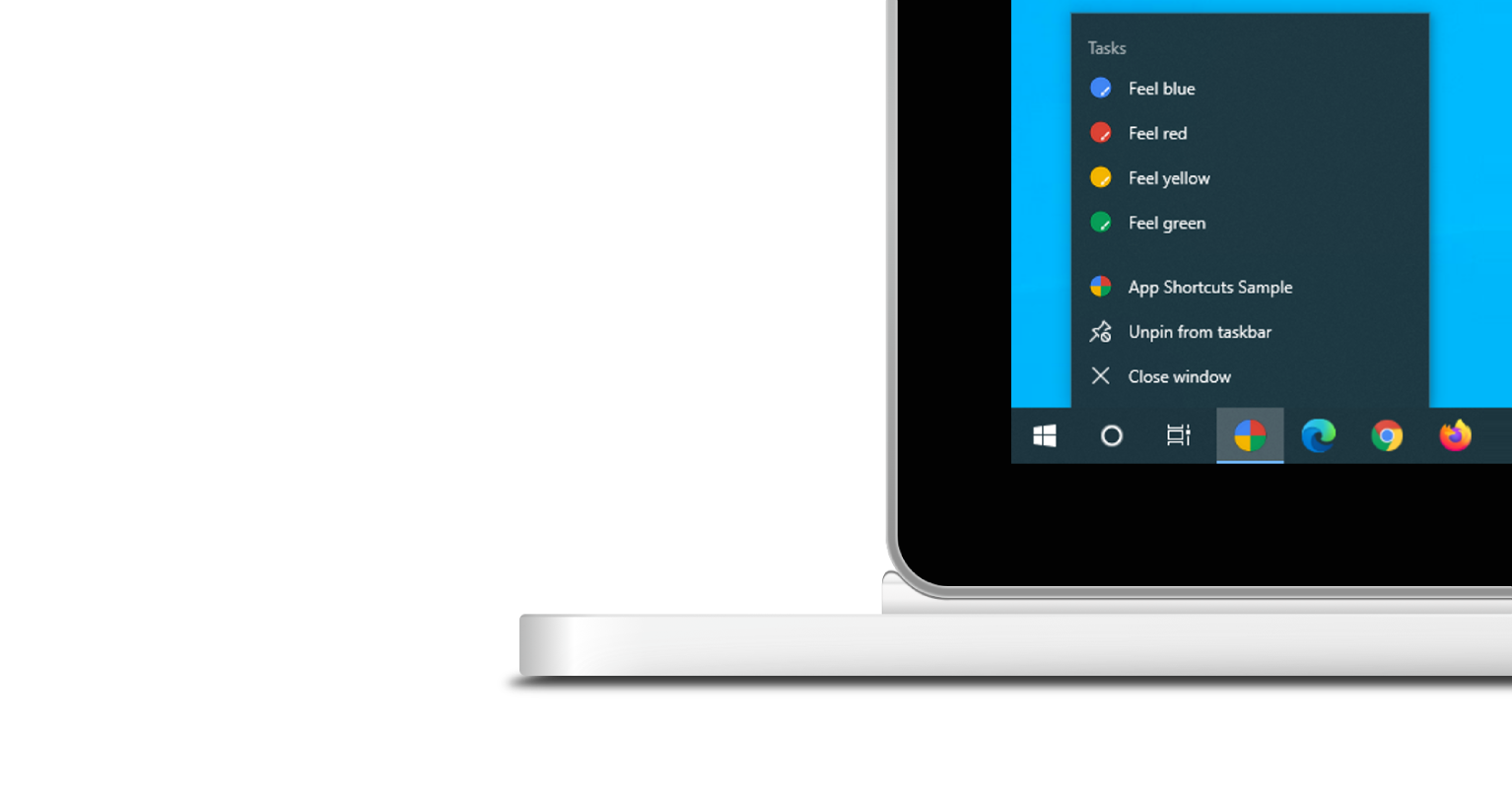
תפריט קיצורי הדרך של האפליקציות מוצג רק עבור אפליקציות Progressive Web App שהותקנו. כדי לקבל מידע על הדרישות בנוגע להתקנה, אפשר לעיין בקטע התקנה במודול Learn PWA.
כל קיצור דרך באפליקציה מבטא כוונה של משתמש, וכל אחת מהכוונות האלה משויכת לכתובת URL בתחום של אפליקציית האינטרנט. כתובת ה-URL נפתחת כשמשתמש מפעיל את קיצור הדרך באפליקציה.
אפשר להצהיר על קיצורי דרך לאפליקציה במערך shortcuts של קובץ המניפסט של אפליקציית האינטרנט. בהמשך מופיעה דוגמה לקובץ מניפסט פוטנציאלי של אפליקציית אינטרנט.
{
  "name": "Player FM",
  "start_url": "https://player.fm?utm_source=homescreen",
  "shortcuts": [
    {
      "name": "Open Play Later",
      "short_name": "Play Later",
      "description": "View the list of podcasts you saved for later",
      "url": "/play-later?utm_source=homescreen",
      "icons": [{ "src": "/icons/play-later.png", "sizes": "192x192" }]
    },
    {
      "name": "View Subscriptions",
      "short_name": "Subscriptions",
      "description": "View the list of podcasts you listen to",
      "url": "/subscriptions?utm_source=homescreen",
      "icons": [{ "src": "/icons/subscriptions.png", "sizes": "192x192" }]
    }
  ]
}
הדרך הקלאסית
המשתמשים יכולים לגרור קישורים לסרגל הסימניות
אם האפליקציה עדיין לא מותקנת, אפשר להציע למשתמש לגרור קישורים מדף האינטרנט ולשחרר אותם בסרגל הסימניות בדפדפן. כך הם יכולים להתחיל במהירות משימות נפוצות או מומלצות באפליקציית האינטרנט.
קריאה נוספת
הדגמה (דמו)
HTML
<!DOCTYPE html>
<html lang="en">
  <head>
    <meta charset="utf-8" />
    <meta name="viewport" content="width=device-width, initial-scale=1" />
    <meta name="color-scheme" content="dark light" />
    <link rel="manifest" href="manifest.json" />
    <title>How to create app shortcuts</title>
    <!-- TODO: Devsite - Removed inline handlers -->
    <!-- <script>
      if ('serviceWorker' in navigator) {
        window.addEventListener('load', () => {
          navigator.serviceWorker.register('sw.js');
        });
      }
    </script>
    <script type="module" src="script.js"></script> -->
  </head>
  <body>
    <h1>How to create app shortcuts</h1>
    <ol>
      <li>
        You can drag these <a href="blue.html">blue page</a> or
        <a href="red.html">red page</a> links to the bookmarks bar
        and access them later.
      </li>
      <li>
        Install the app by clicking the button below. After the installation,
        the button is disabled.
        <p>
          <button disabled type="button">Install</button>
        </p>
      </li>
    </ol>
  </body>
</html>
JS
        // The install button.
const installButton = document.querySelector('button');

// Only relevant for browsers that support installation.
if ('BeforeInstallPromptEvent' in window) {
  // Variable to stash the `BeforeInstallPromptEvent`.
  let installEvent = null;

  // Function that will be run when the app is installed.
  const onInstall = () => {
    // Disable the install button.
    installButton.disabled = true;
    // No longer needed.
    installEvent = null;
  };

  window.addEventListener('beforeinstallprompt', (event) => {
    // Do not show the install prompt quite yet.
    event.preventDefault();
    // Stash the `BeforeInstallPromptEvent` for later.
    installEvent = event;
    // Enable the install button.
    installButton.disabled = false;
  });

  installButton.addEventListener('click', async () => {
    // If there is no stashed `BeforeInstallPromptEvent`, return.
    if (!installEvent) {
      return;
    }
    // Use the stashed `BeforeInstallPromptEvent` to prompt the user.
    installEvent.prompt();
    const result = await installEvent.userChoice;
    // If the user installs the app, run `onInstall()`.
    if (result.outcome === 'accepted') {
      onInstall();
    }
  });

  // The user can decide to ignore the install button
  // and just use the browser prompt directly. In this case
  // likewise run `onInstall()`.
  window.addEventListener('appinstalled', () => {
    onInstall();
  });
}